Rewards and earning rules
Choose how patients earn points, create the rewards they unlock, and follow how they are used at reception.
Last updated
Patients collect points and unlock rewards from the Rewards tab of the app. You set everything in Patient app > Offers & rewards > Rewards.
Rules apply clinic by clinic. If you manage several clinics, choose the clinic in the top bar first.
Earning rules
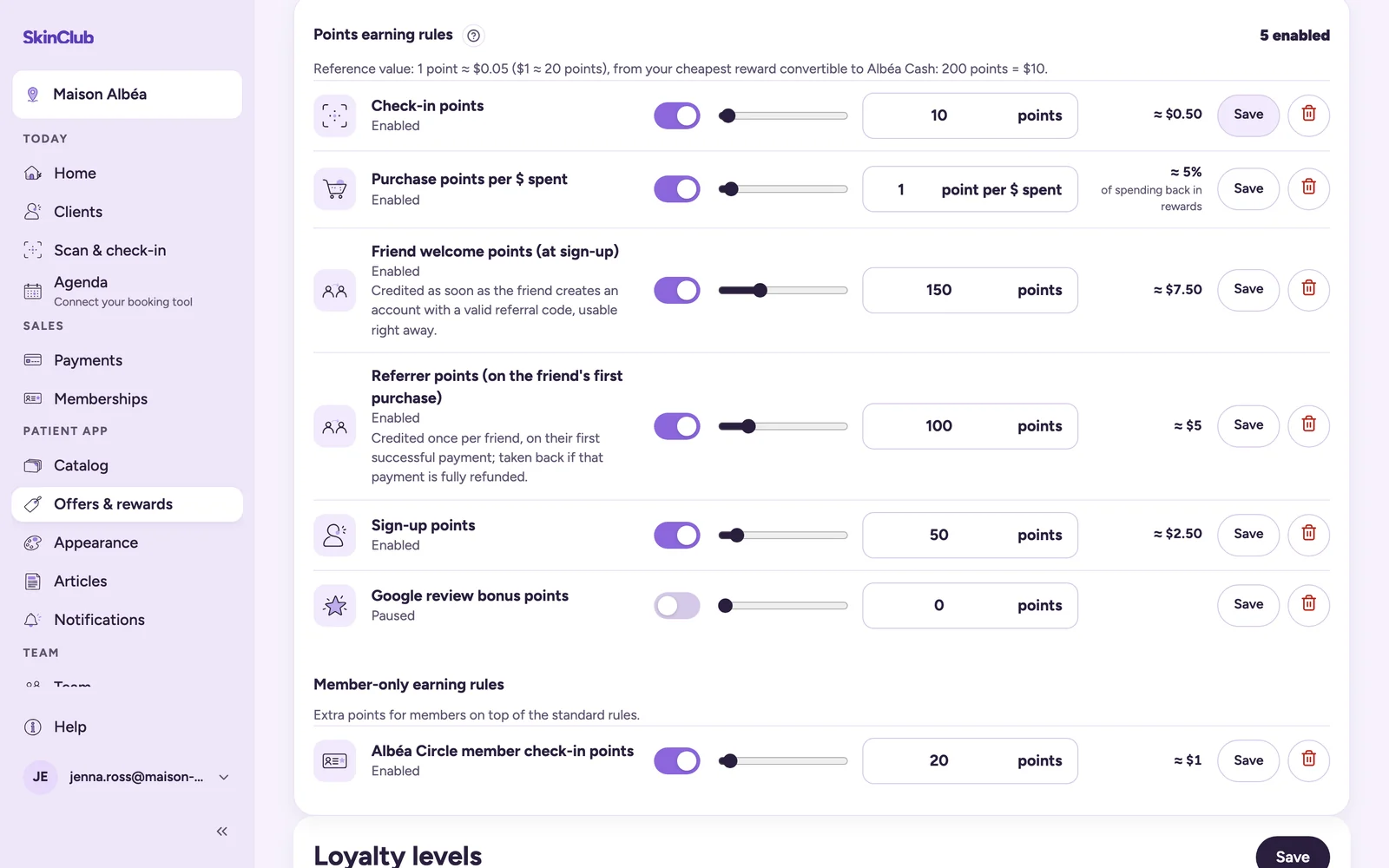
Points earning rules lists the ways to earn points:
- Purchase points per € spent: points for each amount paid.
- Sign-up points: points when the account is created.
- Check-in points: points for each visit recorded at reception.
- Friend welcome points (at sign-up) and Referrer points (on the friend's first purchase): referrals (see Referrals and QR sources).
- Google review bonus points: an optional bonus, off by default (see Google review link and bonus).
For each rule:
- Use the switch to turn it on or pause it (Enabled or Paused).
- Set the number of points. Next to it, the Admin shows their approximate money value or, for the purchase rule, the share of spending given back in rewards.
- Click Save.
The bin icon deletes a rule, after a confirmation. It is greyed out for a group rule, marked Group rule: change it by redefining it for this clinic. Save it to create this clinic's own version.
Under the title, a note gives the reference value of one point. It comes from your cheapest reward that converts to cash, or else from your cheapest valued reward.
If you have a membership plan, Member-only earning rules sets the check-in points of its members. At each visit, a member gets this number instead of the standard check-in points, when it is higher: the two do not add up. A plan's Reward points multiplier boosts its members' purchase points (see Create and publish a membership plan).
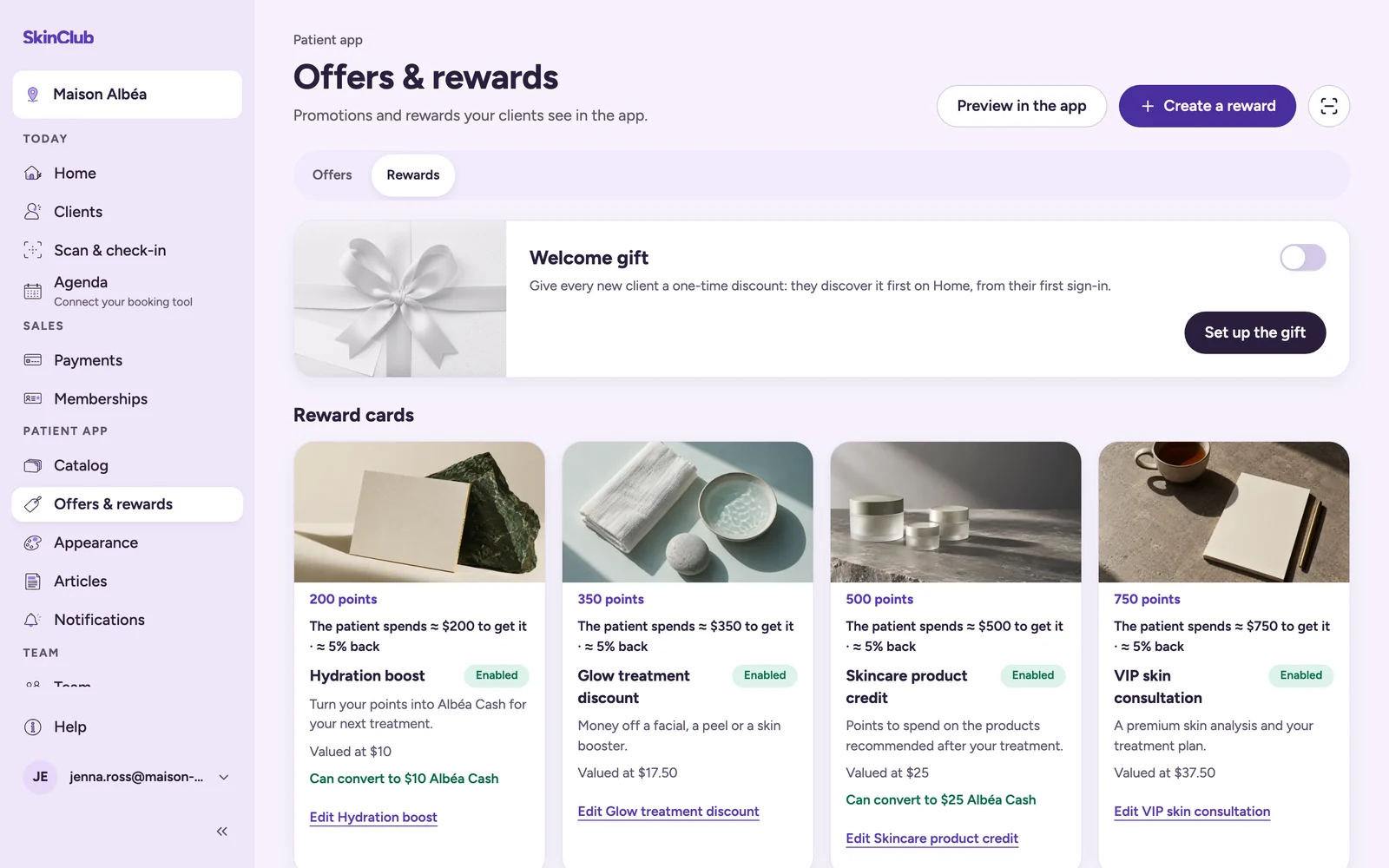
Reward cards
- Click Create a reward.
- In Reward, fill in the Reward name and the Offer description. Pick an image if you wish.
- In Discount, optionally choose a percentage or an amount off, and a Treatment (optional).
- In Unlock and expiry, set Unlocks at: the points needed. Add a Valued at (optional): the value shown to the patient, not a price you charge.
- Allow conversion to … (it ends with your Cash name) is on by default: patients can turn the reward into spendable balance. Check the suggested Cash value, or switch the conversion off.
- Click Create reward.
Keep Enabled on so patients see the reward as soon as you save. Click a card to edit or pause it. There is no delete action for a reward card.
What patients do
In the app, a patient sees their balance, the locked rewards and the ones they have unlocked. For an unlocked reward:
- The patient taps Redeem. The app shows a single-use QR code, valid for 10 minutes.
- At reception, you scan this code in Today > Scan & check-in.
- You check the reward with the patient, then click Confirm use. The points are taken at that moment, not before.
A reward that can convert also offers Convert to …. After a confirmation, the amount moves to the patient's cash balance, which reduces a later payment in the app. The conversion cannot be undone.
See also Scan a patient QR and redeem sessions.
Loyalty levels
The Loyalty levels card, under the rules, offers three free levels earned with points. They do not replace your memberships: a level is earned, a membership is bought.
- Switch on Turn on loyalty levels.
- Rename the levels if you wish. Left empty, the default name shows in the patient's language.
- For levels 2 and 3, set the Threshold, in earned points and an optional Level-up bonus, given once.
- Click Save.
A level follows the points earned. Using or converting points never lowers it, and a level reached is never lost. Count manual adjustments includes points added or removed by hand; it is off by default. Estimated distribution shows how many of your patients would sit at each level with these thresholds.
Limits
- Rename points and cash in Patient app > Appearance > Brand & settings, App identity card (Points name, Cash name).
- A 0-point reward cannot be used with a code at reception.
- No expiry date is applied to points or rewards.