Referrals and QR sources
Track which placement brings patients in, set referral points, and follow the referrals patients share from the app.
Last updated
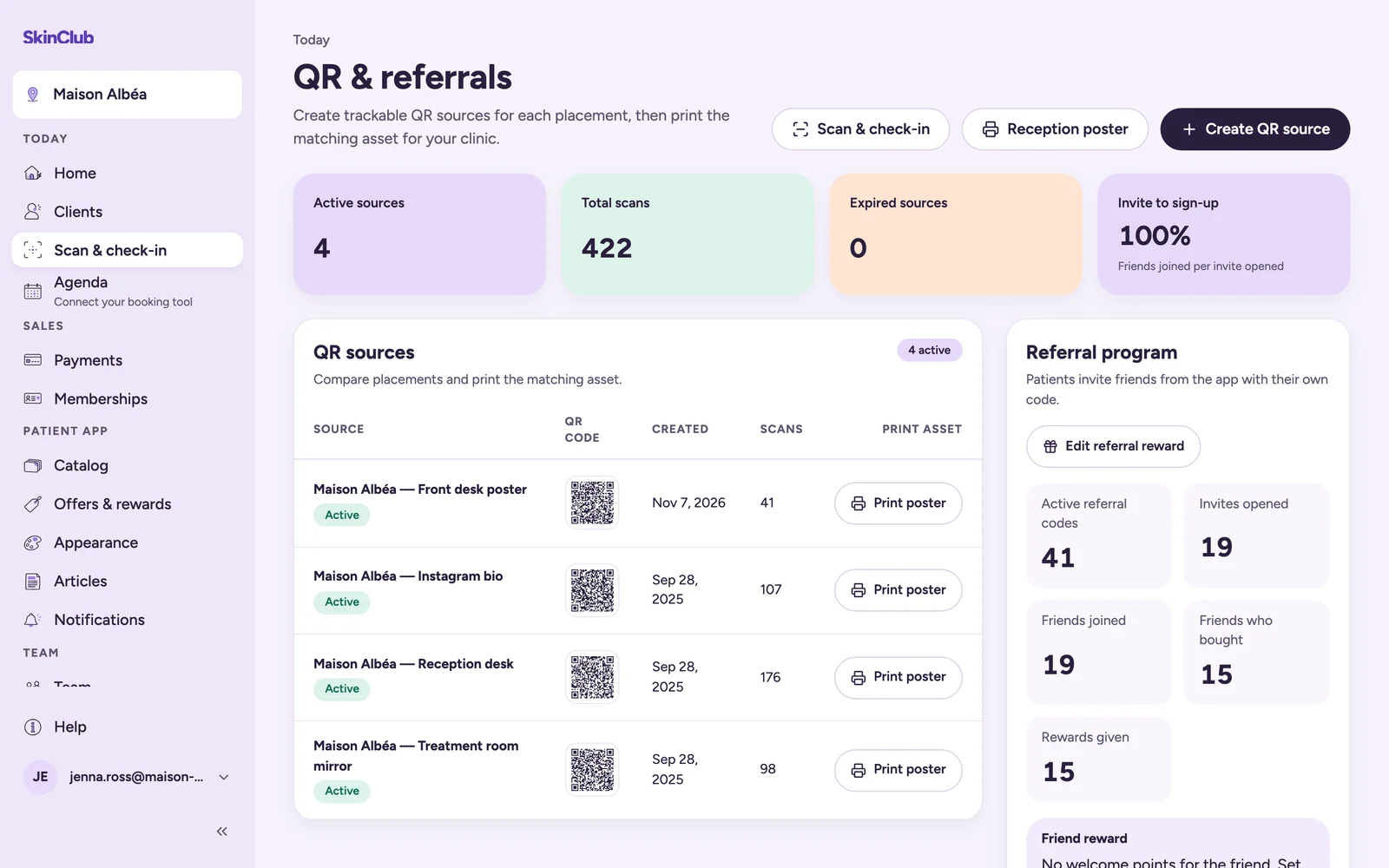
QR & referrals groups two things: QR sources for your physical placements, and the referral codes patients share.
Open it from Today > Scan & check-in, with the QR & referrals button.
QR sources
A QR source is a trackable QR code for one placement, such as the front desk or a flyer.
- Click Create QR source.
- Choose the Center if you have several, then enter a Source name (for example "Reception desk"). Patients never see this name.
- Optionally set an Expiry date. Leave it empty to keep the QR active.
- Click Create QR source.
The list shows each source with its status (Active or Expired), its QR code, its Created date, its Scans and a Print poster button. The top cards give Active sources, Total scans and Expired sources. Use a distinct source for each physical placement so scans stay attributable.
After the expiry date, a source is marked Expired and its poster can no longer be printed. Click Renew: a new QR code is created under the same name. Print the new poster and replace the old one, which stays expired.
Referral points
Referrals rest on two independent rules, set in Patient app > Offers & rewards > Rewards:
- Friend welcome points (at sign-up): credited as soon as the friend creates an account with a valid referral code, usable right away. This rule is on by default, at 150 points.
- Referrer points (on the friend's first purchase): credited once per friend, on their first successful payment, and taken back if that payment is fully refunded.
A warning shows when the friend's points, with their sign-up points, stay below your cheapest reward: the friend could not unlock anything with them alone.
What patients do
In the app, the Refer a friend row lets a patient share their personal code. It shows when the referrer rule is on. The shared message contains a link. The link opens a SkinClub page that shows the code, with buttons to open or install the app.
The friend enters this code on the Clinic code screen of the app, then creates their account. They are then attributed to the patient who referred them.
Follow referrals
The Referral programme card shows Active referral codes, Invites opened, Friends joined, Friends who bought and Rewards given. Once an invite has been opened, an Invite to sign-up card at the top of the page gives the share of friends who joined per invite opened.
The Friend reward and Referrer reward lines sum up your rules. The Edit referral reward button opens Offers & rewards > Rewards.
Limits
- Activity shows once patients start sharing from the app.
- The page opened by the referral link is in French or English, depending on the browser language.