Print the reception poster
Print a poster with your clinic's QR code (A4, A3 or US Letter) so patients can reach your app.
Last updated
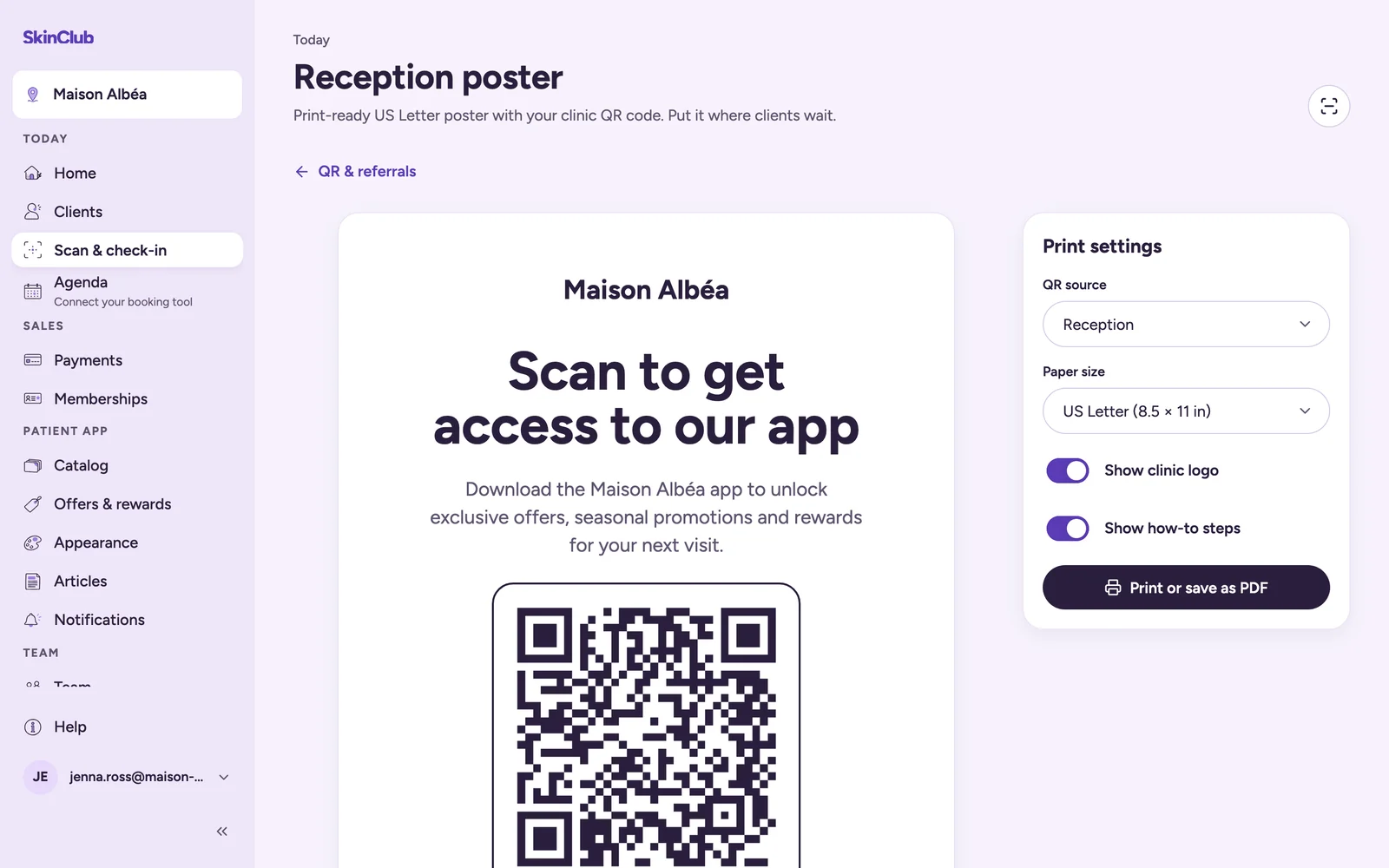
The reception poster is a print-ready page with your clinic QR code. Put it where patients wait.
Print it
- Open Today > Scan & check-in, then QR & referrals.
- Click Reception poster. Or click Print poster on a QR source in the list to print that source's poster.
- If you have several active sources, choose one in QR source. The poster counts scans for the source you pick.
- In Print settings, choose the Paper size: A4, A3 or US Letter. A clinic billing in US dollars starts on US Letter, the others on A4.
- Switch Show clinic logo and Show how-to steps on or off.
- Click Print or save as PDF.
The printed steps are: "Open your camera", "Point at the code", "Install the app and sign up".
What the patient does
The patient points their camera at the code. If the SkinClub app is installed, it opens on your clinic, with no code to type. Otherwise, a SkinClub web page shows the clinic code and buttons to open or install the app. After installing, the patient comes back to this page or types the code shown.
Tips
- Create one source per placement (reception, window, flyer) to compare scans. See Referrals and QR sources.
- Check the poster in print preview before printing a batch.
Limits
- The poster needs your clinic's location code or a QR source. Without them, the page shows an error and cannot be printed.
- An expired source no longer has a poster. Renew it to get a new QR code.
- It is a QR to the app, not a personal invitation. For a named client, use Invite a patient to the app at reception.