Invite a patient to the app at reception
Create a personal QR code and link for a client. Nothing is sent by SMS or email.
Last updated
An assisted invitation gives a client their own QR code and link. The app opens straight on your clinic, with no clinic code to type, and the sign-up is credited to you.
Create the invitation
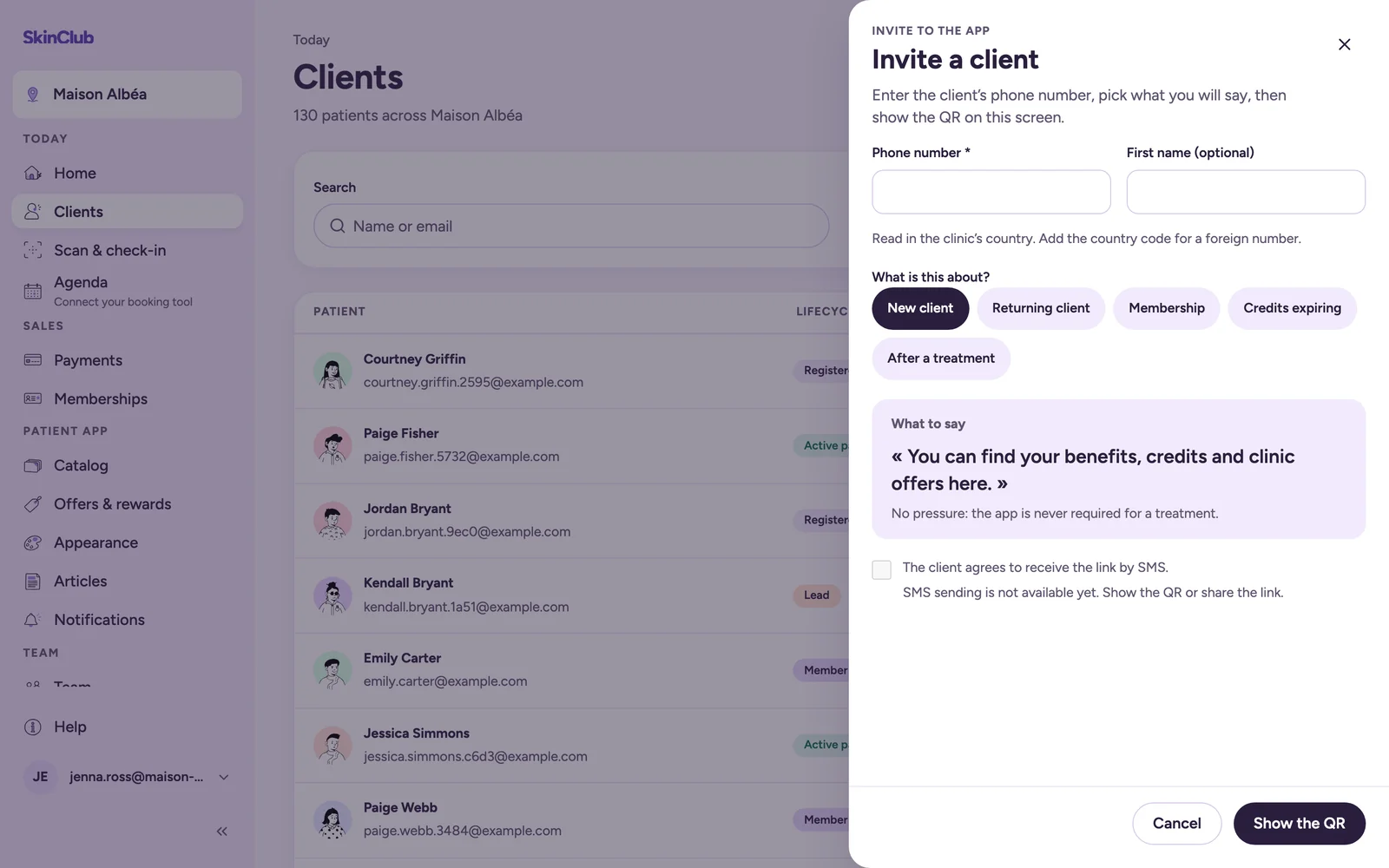
- Click Invite a client from Today > Clients or Today > Scan & check-in, or Invite to the app from a client profile (phone and first name prefilled).
- Enter the Phone number. It is read in your clinic's country, so add the country code for a foreign number.
- If you want, fill in First name (optional).
- Under What is this about?, pick a context (New client, Returning client, Membership, Credits expiring, Birthday, After a treatment). A short script appears under What to say.
- If your clinic has turned on a welcome gift, the Welcome gift card appears. In Gifted treatment, keep Every treatment chosen by the clinic or pick one treatment. The discount and the validity are the ones the clinic set.
- Click Show the QR.
Hand it over
The drawer shows the client's personal QR, the Valid until date and who the sign-up is credited to. The client scans the QR with their phone. You can also click Copy link or, when your browser supports it, Share….
Nothing was sent to the client. SMS sending is not available yet, so show the QR or share the link yourself.
What the client sees
The app opens on your clinic. The screen shows the masked end of the number, and the client types their number to sign in. If a welcome gift is on, they discover it first on their Home at their first sign-in. Once they have signed up, you see it in the team leaderboard.
Limits
- An invitation is for one client and works once. It stops working after 7 days.
- A new invitation for the same client replaces the previous one.
- If the client is already in the app, you are told that no invitation is needed.
- An hourly limit applies to invitations per staff member and per clinic.
- The welcome gift is set up in Patient app > Offers & rewards > Rewards (see "Rewards and earning rules").
- Staff points for sign-ups need a rule (see "Staff rewards").