Create and publish a membership plan
Set a name, a price and a billing cadence, then show the plan to patients.
Last updated
A membership is a recurring plan patients can join from the app.
Create the plan
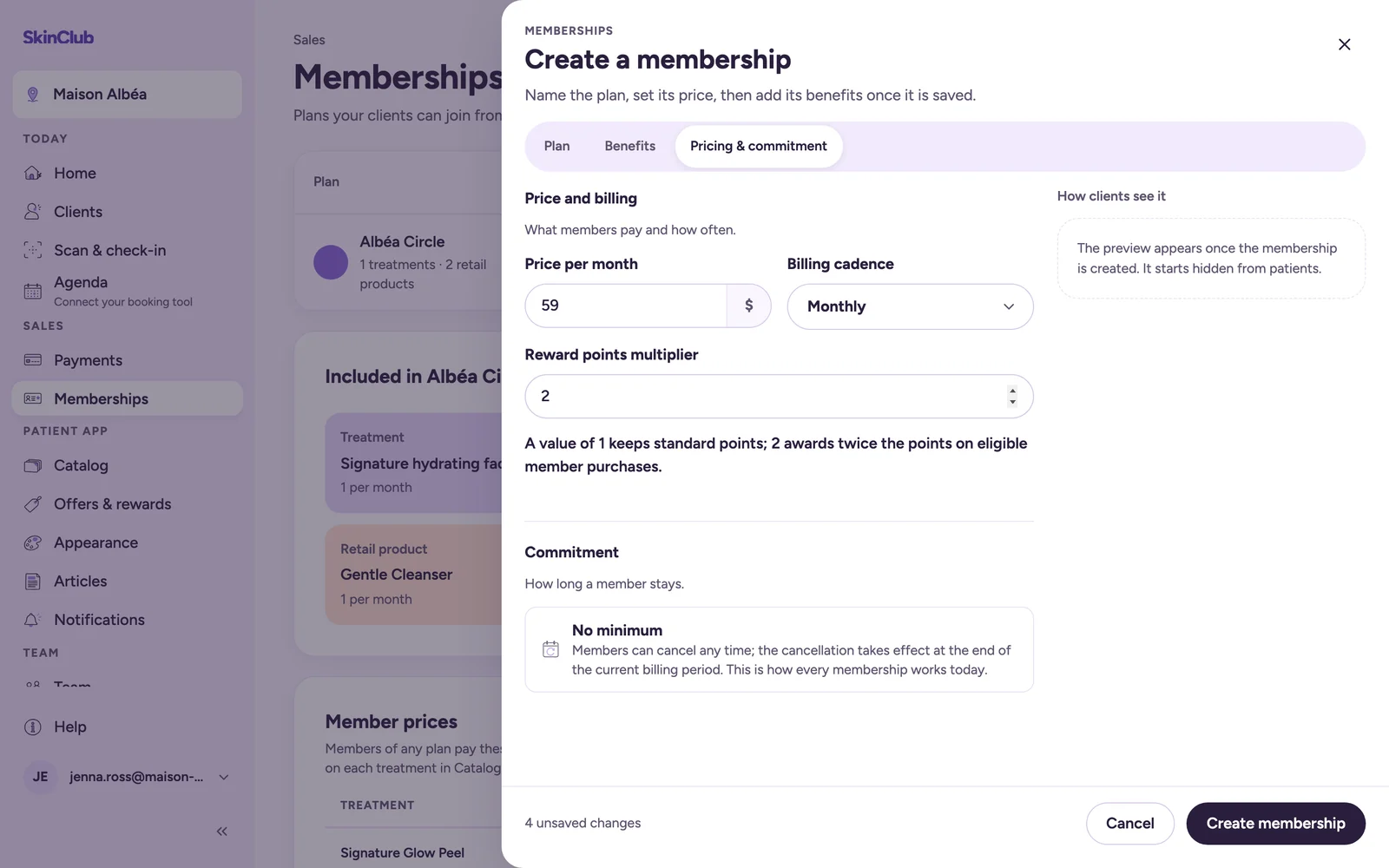
- Open Sales > Memberships and click New membership.
- On the Plan tab, fill in Membership name (80 characters at most), Patient-facing description (1,000 characters at most) and Membership image.
- On the Pricing & commitment tab, enter the price, choose the Billing cadence (Monthly or Annual) and set the Reward points multiplier, between 1 and 10. With 1 the member earns standard points; with 2 they earn twice the points on eligible purchases.
- Click Create membership.
A new plan starts hidden. Included treatments and products are added once the plan is saved (see "Included treatments and member prices").
The commitment is the same for every plan: No minimum. Members can cancel any time, and the cancellation takes effect at the end of the current billing period.
Show it to patients
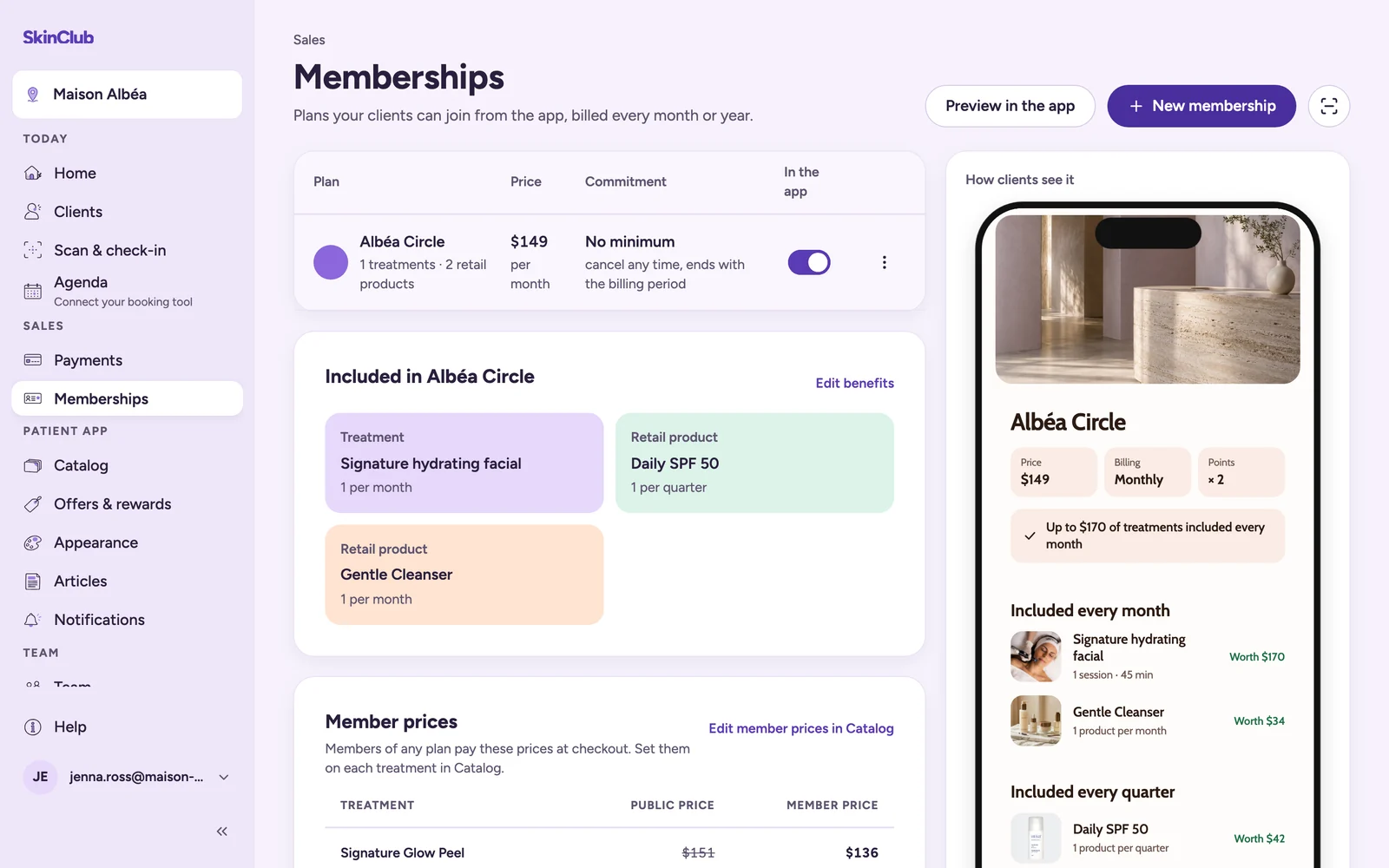
- In the list, use the switch in the In the app column. You can also open the plan with Edit membership, then use the switch on the Visibility tab.
- The switch saves straight away.
The plan then reads Live in app and patients can join. Switched off, it reads Paused: it disappears from the app and nobody new can join. Each row's actions menu also offers Show membership or Hide membership.
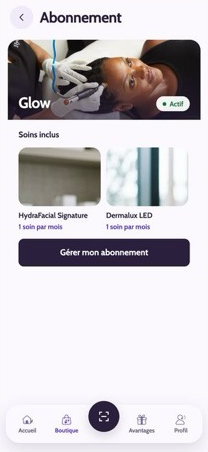
The Preview in the app button opens the live preview of the memberships screen. The How clients see it panel shows the saved plan as it appears in the app.
Terms get locked
While a checkout is pending, and after the first successful payment, the price, billing cadence, reward multiplier and included benefits are Locked. The What is locked and why section on the Pricing & commitment tab says so.
The name, description, image and visibility stay Still editable. To change the rest, create a new plan with Create a new membership. Pausing a plan never changes the locked terms.
Before you publish
- Connect Stripe first, or patients cannot pay for the plan in the app (see "Connect Stripe").
- Your app must be published (see "Preview, then publish"). Publishing the app needs at least one plan that is shown.
Delete a plan
Delete membership is in the row's actions menu and at the bottom of the edit panel. This can't be undone.
Deleting is refused once a patient has joined the plan: hide it instead. It is also refused while members-only articles target the plan: change their audience, or archive and delete them first.