Add and edit treatments in your catalogue
Create a treatment from a SkinClub template, set its price, booking and photos, and hide it from the shop when needed.
Last updated
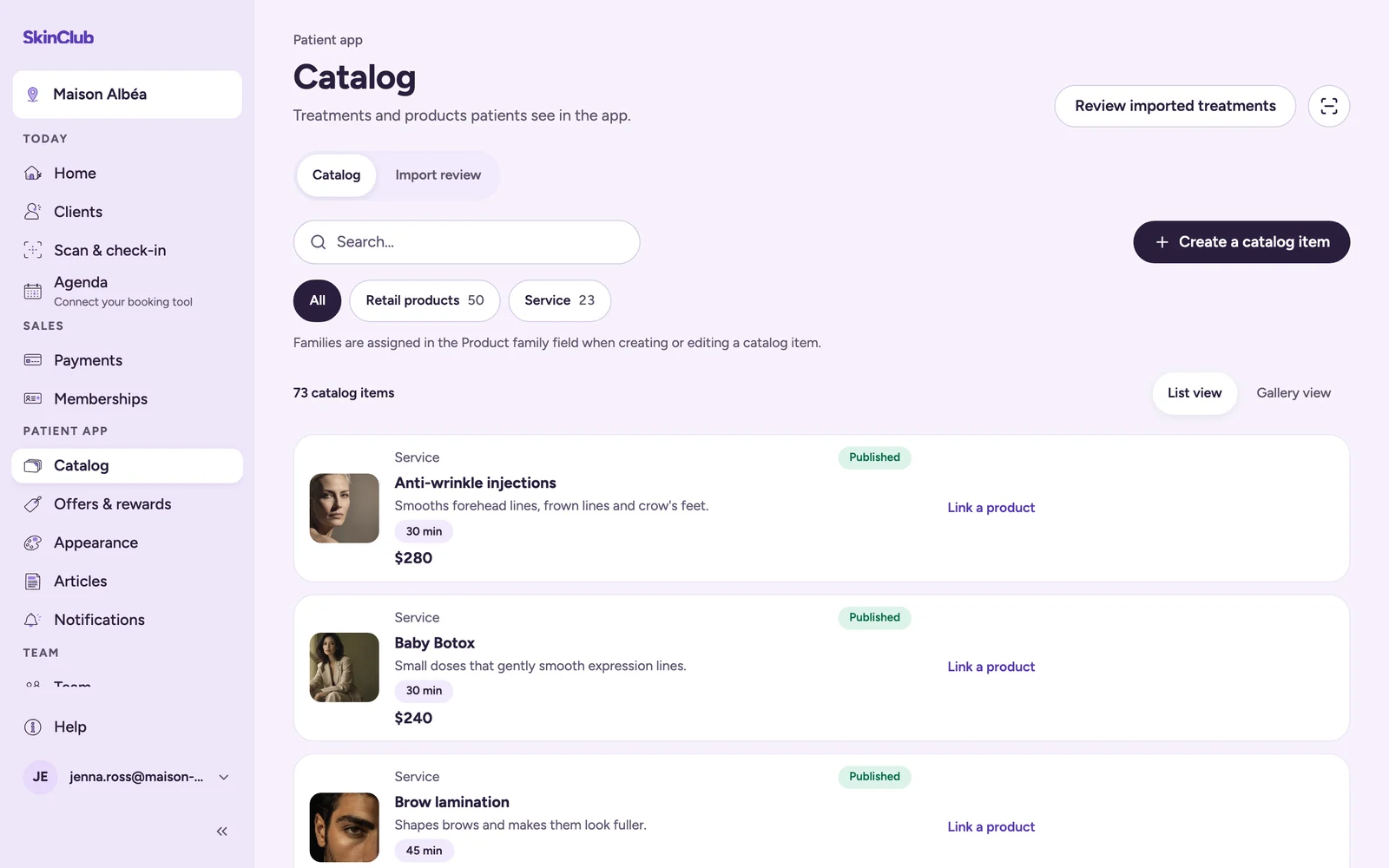
Your catalogue is the list of treatments and retail products patients browse in the app. You manage it in Patient app > Catalog.
Find an item
Use the Search… field to search, the family buttons (All or one family) to filter, and List view or Gallery view to change the layout. Each card shows whether the item is published or a draft.
Add a treatment
- Click Create a catalog item. The drawer opens on the Details tab.
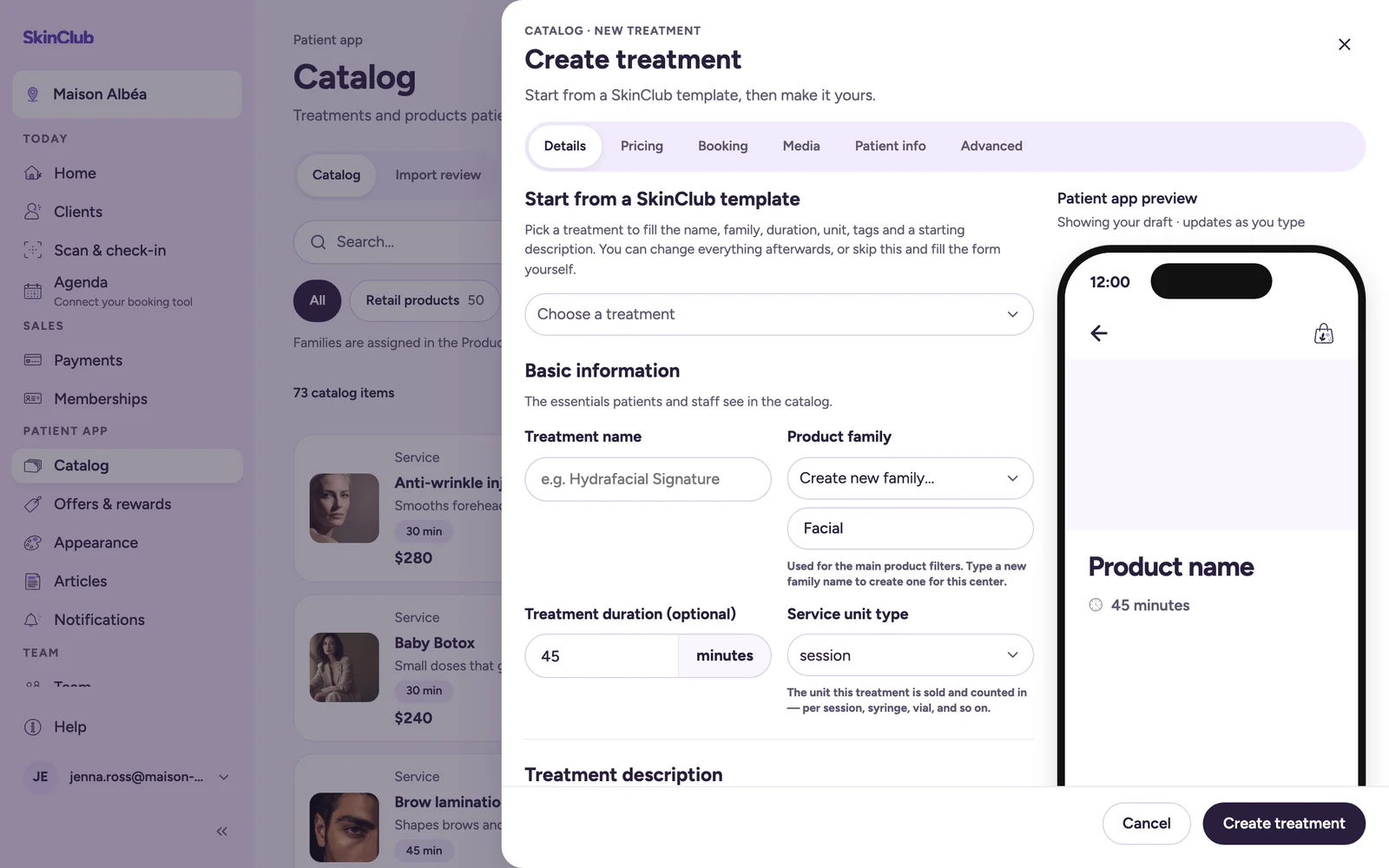
- Under Start from a SkinClub template, use Choose a treatment to pick one from the SkinClub list. Search treatments helps you find it. The form fills in the name, family, duration, unit, tags and a starting description. You can also skip this and fill in everything yourself.
- Adapt what the form suggests: Treatment name, Product family, Treatment duration (optional), Service unit type, Treatment description and Tag(s).
- Pricing tab: sell the treatment Individually (one price), In Bundles (no standalone price, sold in a bundle or membership) or In Variations (several prices, with an Up to (optional) for a range).
- Media tab: choose the Main image. Once the treatment is saved, Edit gallery lets you add up to five ordered images and one video; the main image stays the cover. If you want, add up to three Before & after results.
- Patient info tab: if you want, fill in What to expect (Before treatment instructions and After treatment instructions).
- Click Create treatment. For an existing treatment, the button reads Save changes.
The preview on the right of the drawer shows the treatment page as you type.
Some treatments ask you to write your own description, because the result depends on the product or protocol your clinic uses.
Options for each treatment
- Booking tab, Appointment booking: Use clinic default, Use a specific link (with a Custom booking link) or Do not offer appointments. See "Set your clinic profile and booking link".
- Pricing tab, Payment options: Cash balance cannot be used on this product.
- Patient info tab, Consultation warning: shows a pop-up asking the patient to consult the clinic before booking. Some treatments require it.
- Advanced tab, Shop visibility: Hide this product from shop removes the item from the app's shop. Nothing is deleted.
Retail products
Retail products open in their own drawer (Edit retail product). It asks for the name, Price, Inventory status, Product description and a Product image. Edit product gallery adds up to five ordered images.
Member prices
A member price is set per variation, in Pricing with In Variations: Member price (optional). See "Included treatments and member prices".
Limits
- Your app needs at least one published treatment before you can publish it (see "Preview your app, then publish it").
- A treatment with no price shows Price on request in the app, and one priced at 0 shows Free. Neither can be added to the cart: the patient gets your booking action instead (booking link, WhatsApp or a call).
- Treatments read from your website arrive for review first: Review imported treatments button at the top of the page (see "Review imported treatments").