Create an offer
Set up a one-time offer for the patient home, choose who it applies to, and approve it so it can go live.
Last updated
A one-time offer is a promotion with a headline, a discount and a start date. It runs once, then expires. You manage offers in Patient app > Offers & rewards > Offers.
Create the offer
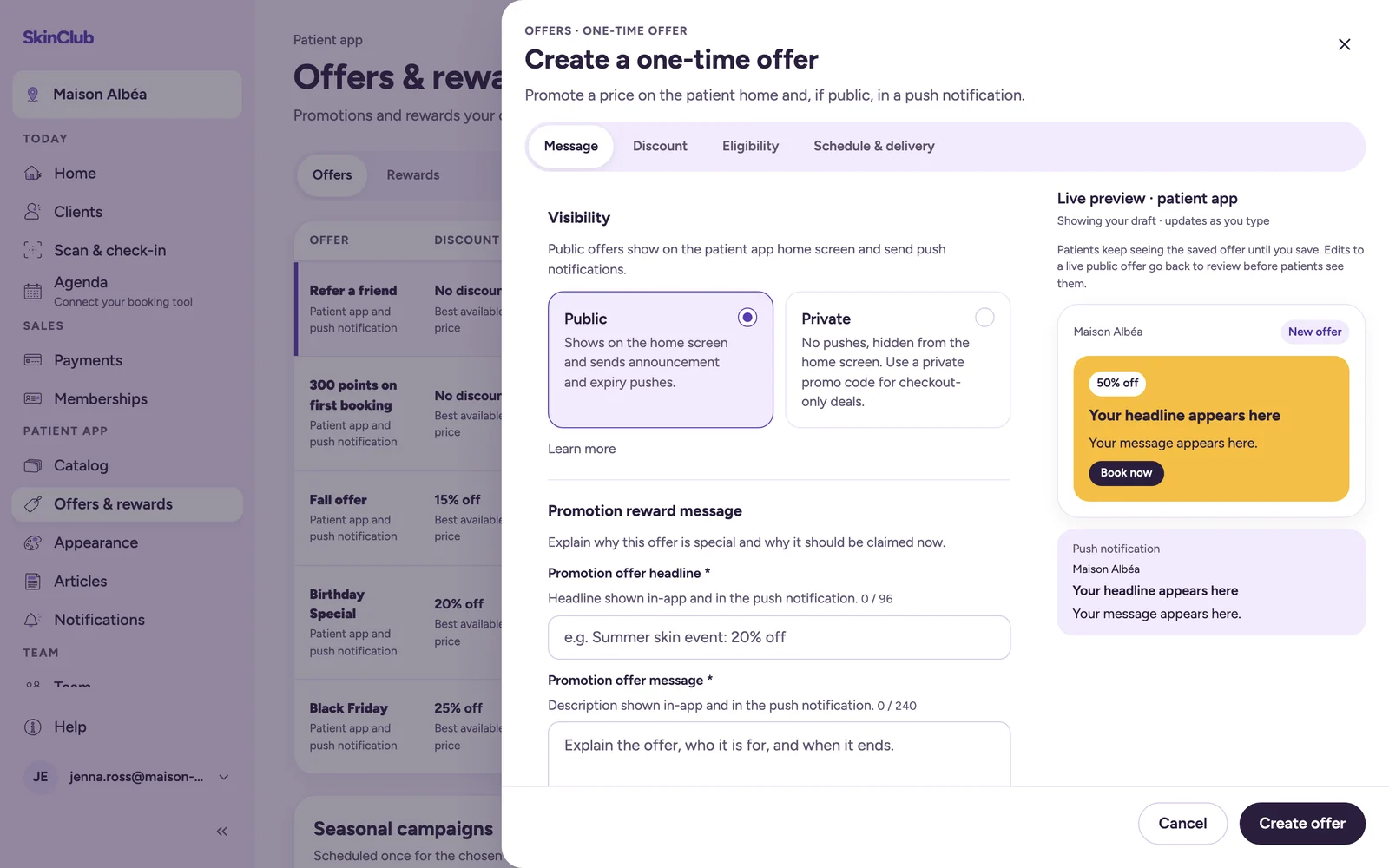
The offer panel has four tabs: Message, Discount, Eligibility and Schedule & delivery.
- Click Create offer.
- On the Message tab, under Visibility, choose Public to show the offer on the patient app home screen, or Private (see below).
- Write the Promotion offer headline (96 characters at most) and the Promotion offer message (240 characters at most).
- On the Discount tab, choose the Discount type: Percentage, a fixed amount, or No discount (private offers only). Then enter the Discount value.
- Still on Discount, under Member pricing, choose how the offer works with member prices (see below).
- On the Eligibility tab, choose All treatments & products, Includes or Excludes, then pick the items.
- On the Schedule & delivery tab, set Approval: Pending review, Approved or Rejected. A public offer is never shown or sent until it is approved.
- Set the Lifecycle status: Draft, Scheduled, Active, Paused or Ended.
- Under Date, pick a Start date and Expires in (a number of days). A new offer must start on a future date.
- Check the Delivery summary, then click Create offer.
For an existing offer, open Edit offer from its row menu, then click Save offer.
You can colour the announcement banner under Banner customization and choose an image. The app works out whether the offer is live from its status and its dates, so you do not need to switch it on at midnight.
Offers and member prices
- Best available price (recommended): the patient automatically gets the lower of the member price and the promotional price.
- Stacks with member pricing: the promotion applies on top of the member price. Use it on purpose, for a birthday or loyalty offer.
Pick an item under Eligibility: the first one drives the price example on the Discount tab.
Private offers
A private offer does not appear on the home screen. It is always saved as a draft: switching an active offer to Private takes it away from patients. For a code patients enter at checkout, use a private promo code instead.
Private promo codes
Click Private code (or Create code in the Private promo codes card). The Create private promo code panel asks for:
- a Code (letters and numbers, 40 at most), a Percentage or Fixed amount discount, and Member pricing;
- Usage limits: Single use or Multiple use, with Max redemptions and Per-patient limit (empty = no limit);
- Targeting: All cart items, Include one item or Exclude one item;
- the Active window, from the first day to the end of the last day.
Click Create promo code. The code never appears in the app: your team shares it with the patient, who types it at checkout.
Limits
- To publish your app, you need at least one active, approved offer (see "Preview your app, then publish it").
- A private offer has no patient audience: it does not appear on the home screen.
- An offer targets at most 50 items.