Preview your app, then publish it
See the app in a phone frame, then switch it from Draft to Published once the readiness checks pass.
Last updated
Preview
Open Account menu > Live preview to see your patient app in a phone frame, even while it is still a draft.
- The Home, Shop, Membership and Rewards tabs open that screen.
- Device changes the format: iPhone, Android or Small.
- Reload restarts the preview after a save. Open in a new tab opens the preview in a browser tab.
Shortcuts also exist on Patient app > Appearance > Home screen (Open full preview), on Sales > Memberships and on Offers & rewards > Rewards (Preview in the app).
The preview shows the last saved version. Unsaved edits do not appear until you save. The menu entry is disabled while the active clinic has no location code.
Publish
Only owners and admins can publish.
- Go to Patient app > Appearance > Brand & settings.
- In Patient app status, switch from Draft to Published.
- Save.
Publishing runs readiness checks first. The app needs:
- an app name;
- the patient app module enabled for your clinic;
- at least one published treatment;
- at least one published membership plan;
- at least one active, approved offer.
If a check fails, the message tells you what is missing. If no logo is saved, a dialog warns you: choose Add a logo or Publish anyway. Without a logo, patients see the clinic name.
To take the app offline, switch back to Draft and save.
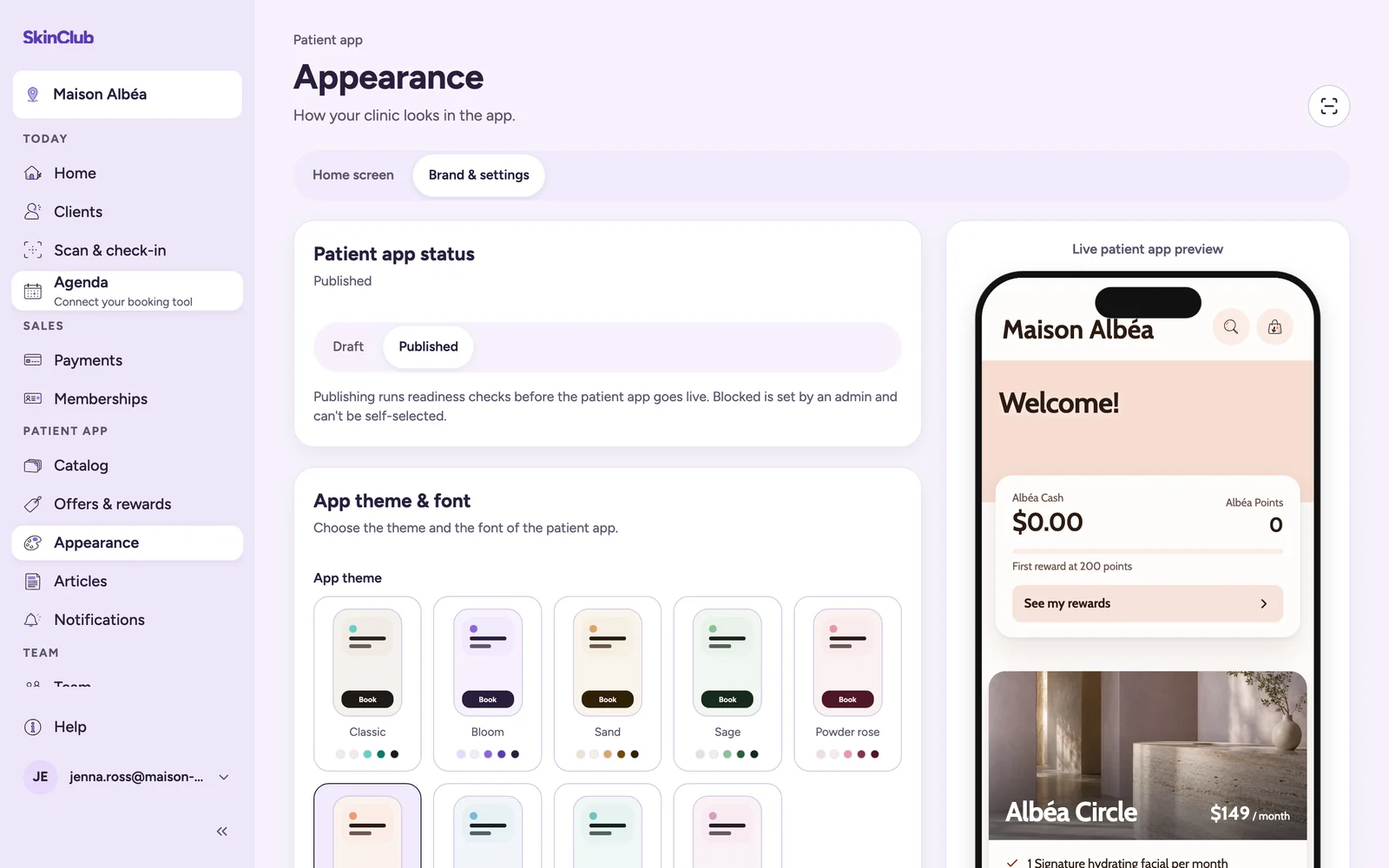
About the Blocked status
Blocked is set by SkinClub and cannot be chosen from this screen. If your app is blocked, contact SkinClub support.
Limits
- While the app is not published, patients cannot open it: the clinic code, QR codes and links do not find it, and nobody can start a membership.
- Publishing the app does not connect payments. Connect Stripe separately (see the Payments articles).