Customise your app's look
Choose a theme, a font, your logo and your home banner, then check the result before patients see it.
Last updated
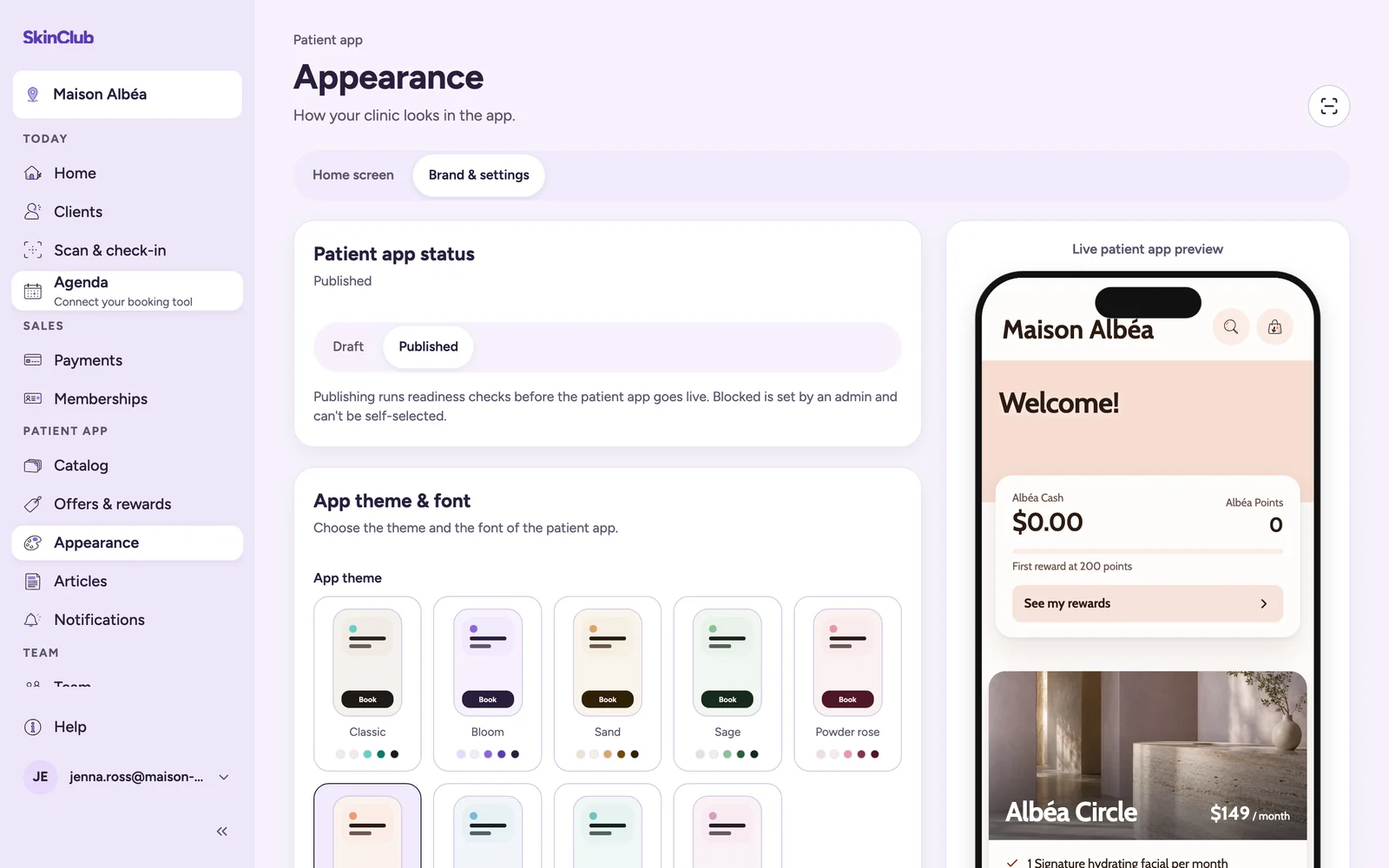
Everything about how your app looks lives in Patient app > Appearance. It has two tabs: Home screen and Brand & settings.
Theme and font
In Brand & settings, the App theme & font card holds two choices:
- App theme: a complete set of colours for every patient screen (backgrounds, cards, text, links, icons, buttons). Choose from nine themes: Classic (the default), Bloom, Sand, Sage, Powder rose, Terracotta, Ocean, Lagoon and Plum. Each card shows a mini phone in the theme's colours. Primary buttons stay dark, tinted by the theme.
- App font: pick a font from the list. You can search it.
There is no custom colour: the theme is the only colour setting.
Logo and names
The App identity card holds:
- Upload my own logo: a square PNG or JPG is recommended, ideally 512 x 512 px, with a 2 MB maximum. Use Remove logo to take it off.
- App display name: the name shown in the app.
- Points name and Cash name: what your points and your store-credit balance are called in the app.
Each name can be up to 48 characters.
Home screen
On the Home screen tab:
- Home banner is the large image at the top of the patient home. A wide image (4:3 or 16:9) with the subject centred crops best. The banner has its own Save home banner button.
- Instagram videos: click Connect Instagram with a professional Instagram account. SkinClub imports your videos, but nothing appears in the app until your team selects them. For each video, set the Order, tick Show on Home and click Save.
Check the result
The preview next to the settings updates as you edit, theme included, and nothing goes live until you save. To see the saved version in a phone frame, open Account menu > Live preview. There you can switch screens (Home, Shop, Membership, Rewards) and change the Device.
Limits
- Live preview shows the last saved version, not edits you have not saved.
- You choose from the themes and fonts the Admin offers. Layouts do not change.
- Changing the look does not publish the app. See "Preview your app, then publish it".