Invite your team and choose roles
Send staff invitations by email, pick a role and a scope, and change or suspend access later.
Last updated
Only owners and admins can invite people and manage access.
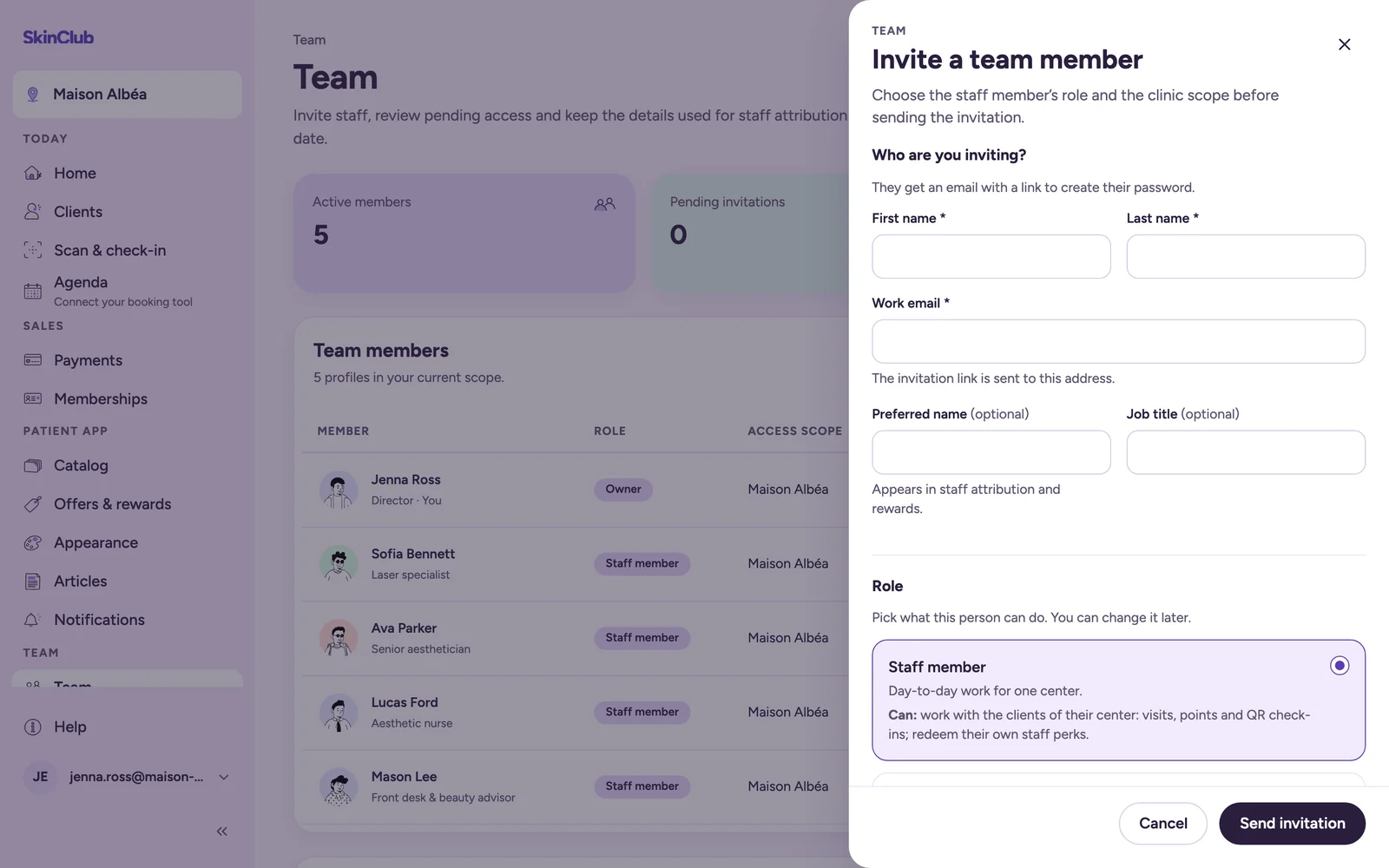
Send an invitation
- Open Team > Team.
- Click Invite a team member.
- Fill in First name, Last name and Work email. Preferred name and Job title are optional.
- Choose a Role.
- For Staff member and Group administrator, choose the centre under Access scope.
- Click Send invitation.
The roles:
- Staff member: day-to-day work for one centre (clients, visits, points and QR check-ins of that centre).
- Group administrator: the same across every centre of the group that contains the centre you pick, plus the group's staff reward requests and staff profiles. No team invites.
- Administrator: the whole console, in every centre. Can invite and manage team members other than owners.
- Owner: everything an administrator can do, plus invite owners and manage their access. Only an owner can invite another owner.
The person receives an email, follows its link and sets a password. The invitation expires after 24 hours. It shows in the Invitations card with its status (Pending, Accepted, Expired or Revoked). Use Revoke to cancel a pending invitation.
Change or suspend access
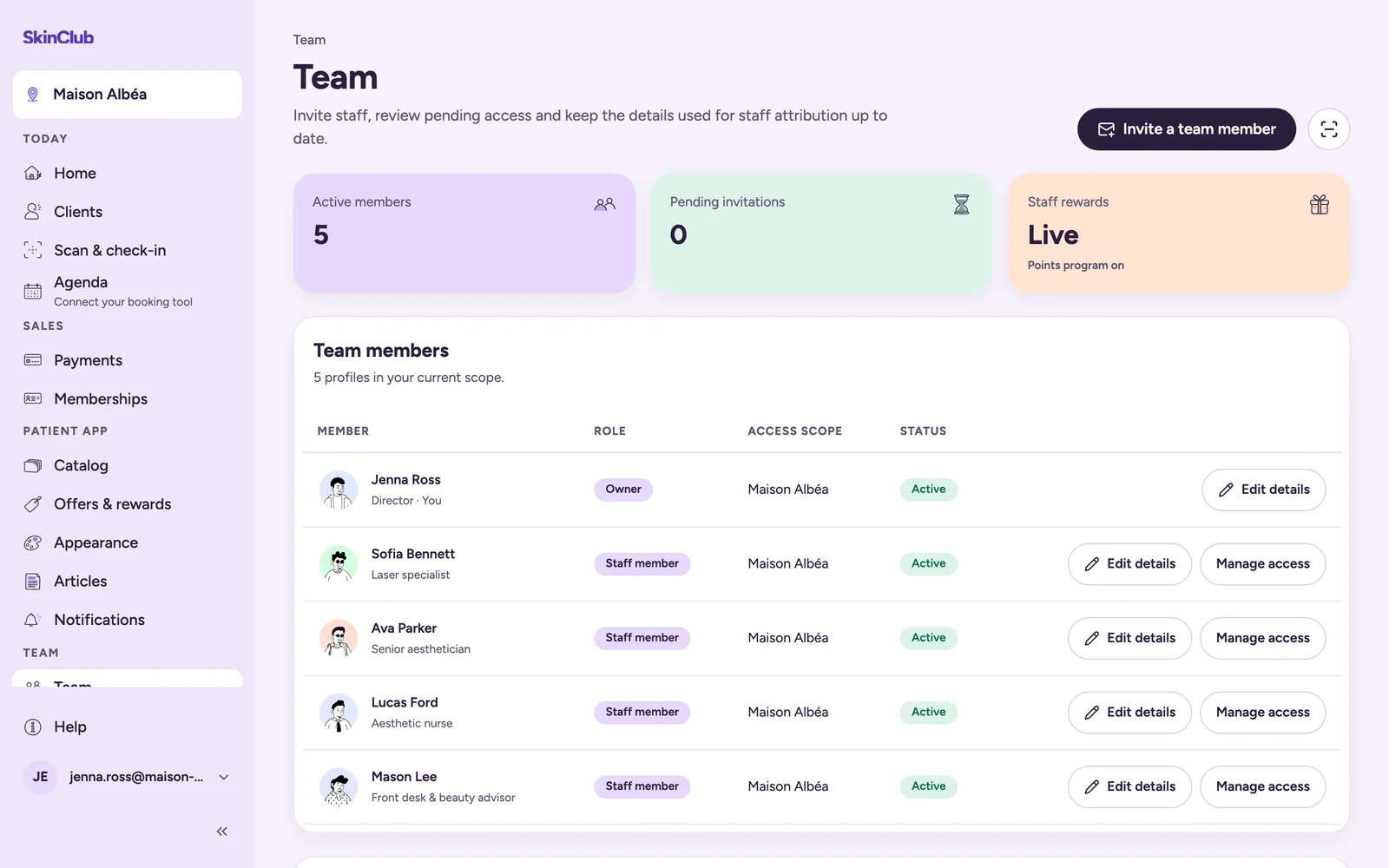
On a team member's row, click Manage access:
- to change the Role or the scope, edit them and click Save access;
- to cut access, click Suspend access and confirm. The status becomes Suspended;
- for a suspended member, Restore access lets them sign in again.
Changes apply immediately. Suspending access keeps the profile and the history of attributed sales. You cannot change your own access.
The Support role (every centre, without access to the team, staff rewards or commissions) can be assigned here but not through an invitation.
Edit details opens a member's profile: first name, last name, preferred name, job title and photo.
Switching clinic
If you work in several clinics or centres, click the clinic name at the top of the sidebar to pick the active one. Everything you see and change applies to it.
Limits
- There is no resend action for an invitation.